Tuesday, December 6, 2016

Rails Development with Docker

For the past few weeks, I've been using Docker to develop Ruby on Rails applications. Although development with Docker brings a new set of problems, the overall result is positive. So I thought I'd share my experience, as it's not the same as the other guides I have found out there.

This post assumes you have some experience with Docker.


Example Application: Ruby on Rails, MySQL, Redis


We rarely use Rails by itself these days. For things like plugins, sure, but most real applications use at least one database layer. So let's have in mind that we're always working with multiple frameworks. But even if we aren't, I believe we should leverage on the benefits of Docker Compose to set some stuff for us, like ports, volumes and etc, without having to type long commands.

For the above stack, the common way is to create one container for each.

Let's start with Ruby on Rails.

As there is quite some stuff we need to do to create this container properly, we need a Dockerfile. I prefer to save all my dockerfiles inside /config/docker, but you can save them wherever you want.

So my Dockerfile (which I placed in /config/docker/Dockerfile-web) starts like this:

FROM ruby:2.3.3
ENV LANG C.UTF-8
ENV APP_DIR /app
RUN mkdir -p $APP_DIR
WORKDIR ${APP_DIR}
CMD rails s -p 3000

Most guides out there will add Bundler commands to the above file, such as bundle install, but as we're working with development, I prefer to have that outside the scope of building. More on that in a bit.

The above Dockerfile should be enough to get our development process started. We can create the docker-compose.yml file now:

version: "2"
services:
  web:
    build:
      context: ./
      dockerfile: ./config/docker/Dockerfile-web
    ports:
      - "3000:3000"
    volumes:
      - ./:/app

Then we can make our first image build with:

docker-compose build

It will build a "web" image with Ruby 2.3.3, as defined in the Dockerfile. Once building is done, we can "enter" the container with:

docker-compose run --rm web bash

Inside the container, we can run all the commands we know, such as bundle install, rails console, and so on. We can install gems at this point, and they will be saved in /usr/local/bundle (inside the container, and not in your host machine).

This is where things get tricky.

Once you exit the container, all new data created in that session will be gone, including the gems we just installed in /usr/local/bundle. This is by design, so we just need to understand what's going on.

A container works like an instance of an image. So once you exit/close the container, that instance will be gone. When you start the container again, all the data will be based on the original image, which means the /usr/local/bundle directory will be empty.

So we need a way to persist certain data, like bundled gems. One way (and mentioned by most guides) is to add them to the building process. In such cases, your Dockerfile will end up like this:

FROM ruby:2.3.3
ENV LANG C.UTF-8
ENV APP_DIR /app
RUN mkdir -p $APP_DIR
WORKDIR ${APP_DIR}
RUN gem install bundler --no-ri --no-rdoc
COPY Gemfile* ./
RUN bundle install
CMD rails s -p 3000

With the new commands, the build process will copy the Gemfile (and .lock) from your application folder to the to-be-generated-image and use them to build all gems into /usr/local/bundle (again, inside the image). This process makes the image ready to run immediately and is perfect for deployment, because it turns the image into a distributable package.

But it may not be suitable for some development workflows.

If your Gemfile changes, you will have to build the image again. This isn't usually a problem, except that every time you have to rebuild (whenever your Gemfile changes), all gems will be reinstalled. Depending on how many gems you have, this can take a long time. If you're changing gems a lot, or, say, you're switching around repository branches with different Gemfiles, this can hinder your productivity.

This is how I deal with this: I don't bundle install in my Dockerfile. I do it manually after I build the image, entering the container and running the commands myself. This is what I'd do if I weren't running Docker after all, so nothing changes in my development routine.

Now, how to deal with gem persistence when you bundle install outside of the building context, given that containers delete new data when they are closed?

The most recommended answer I've seen is to use a data container, and it's been working well in my experience. You can add this new container in your docker-compose.yml:

  data:
    image: tianon/true
    volumes:
      - /usr/local/bundle

Then use it from your "web" container:

  web:
    build:
      context: ./
      dockerfile: ./config/docker/Dockerfile-web
    ports:
      - "3000:3000"
    volumes:
      - ./:/app
    volumes_from:
      - data

This will redirect all data saved in /usr/local/bundle to the data container, and persist that data when you close them. Docker will handle storage internally.

After you build, then it's a matter of entering the container and using the commands you know and love to get your app ready to run.

We can set up MySQL now.

This one does not require a Dockerfile, so all we have to do is add the following new container in docker-compose.yml:

  mysql:
    image: mysql:5.6
    ports:
      - "33000:3306"
    environment:
      MYSQL_ALLOW_EMPTY_PASSWORD: "yes"
      MYSQL_DATABASE: myapp
      MYSQL_USER: root
    volumes_from:
      - data

Now, regarding working with MySQL in development, I prefer to have direct access to it using a client such as Sequel Pro. To allow that, we have to expose a port to the host machine. In the above configuration, that port is 33000. You can pick any port you want, but it must be free in your machine. I don't personally recommend you use the default MySQL port (3306) for this, because if you happen to run multiple docker environments in the future, and more than one of them have MySQL trying to expose the same port to the host machine, you will run into errors. So I pick an arbitrary port and make sure they're different from other projects.

In regards to ports that other containers need to use, that's what the second number does: it exposes the default MySQL port to them (and not to the host). This is important because this is the port you will use in your database.yml file (and not 33000).

While at it, you also need to change the "host" setting in your database.yml to "mysql", which is the container name itself. So if you name your MySQL container to something else, you need to use that name in your configuration. Also set the database name, which must match what you define as MYSQL_DATABASE in the docker-compose.yml file (in the example above, it's myapp).

And finally, you must persist MySQL data, otherwise data will be gone when you close it. So we use the same technique we used with Bundler, adding an additional volume to our data container:

  data:
    image: tianon/true
    volumes:
      - /usr/local/bundle
      - /var/lib/mysql

You can use another data container for MySQL alone, but the result is virtually the same.

Next up: setting up Redis. This is easier as no volumes are involved, so just add a new container to docker-compose.yml:

  redis:
    image: redis:3.0-alpine

Then you need to change your Redis configuration file in your application to point to "redis" as the host. The default port is 6379. If you want access to your Redis instance from your host (if you have a client or something), you will need to apply the same technique done to the MySQL container, exposing the ports in the docker-compose.yml file.

After you've created both MySQL and Redis containers, you need to make them accessible to your "web" container. This is done by adding them as "links" in the docker-compose.yml file:

  web:
    ...
    links:
      - mysql
      - redis

You will be able to see it working for yourself if you enter the "web" container and run ping mysql for example.

Before we bring the whole thing up, let's get over a few things, as they're related to development workflow.

Entering the container should be common now. Again, the command for that is:

docker-compose run --rm web bash

In practice, it runs "bash" in the container named "web" which gives us a shell interface. You want the --rm flag because otherwise the container will remain in your system when you exit it, taking up space.

While inside the container, the work you will commonly do is:
  • bundle install / update
  • rake db:create / migrate / seed / etc
  • run other rake tasks
  • rails generators
  • and so on.
For running the application itself, it's best to leave it for Docker Compose to handle, instead of running it yourself inside the container.

When you docker-compose up, Docker Compose will bring all containers up and output all log on the screen. Then you can use Ctrl+C to close all containers. You can add -d to make them run in the background. In such case, you have to use docker-compose stop to close them.

Since running the containers this way will bring everything up, and down, it is sometimes counter-productive to shut down MySQL and Redis every time you need to restart your Rails application. So here's what I do:

First, I run anything, that's not the application itself, in the background:

docker-compose up -d mysql redis

Then, I bring the application up in synchronous mode:

docker-compose up web

That way, when I Ctrl+C, only the web container goes down. Then I just repeat the command to bring it back up. When you're developing, it is recommended that you do not run the application in background if you need to do some debugging (hello binding.pry).

From this point on, you should be able to develop as you usually do. You can even open another Terminal tab and enter the "web" container if you want to run commands while the application is running.

In closing, here are a few observations I've gathered.

I tried to map /usr/local/bundle to a folder in my machine, like tmp/bundle. This resulted in extremely slow bundle installs and application boot. That's why I used a volume to save gem data. Thankfully, having your own application files in your machine does not slow things down.

On the other hand, you can map your MySQL data folder (/var/lib/mysql) to a folder in your machine if you want, such as tmp/mysql. In my experience, this did not result in decreased performance.

In your Gemfile, if you are using gems that are hosted in private repositories that require SSH keys to download, here's a little trick I did: map the container's .ssh folder to your machine's:


  web:
    ...
    volumes:
      - ./:/ecommerce
      - ~/.ssh:/root/.ssh


You can then even use git commands inside your container like you were in your own machine. :)

I hope that helps someone out there. You can reach me on Twitter if you have questions or comments.

Saturday, October 8, 2016

A new Admin gem for Rails

While working on my fighting game, I came to a point where I needed to create and persist some data, namely the initial poses of my cube-ish fighter.

Enter the administrative interface of my project. I have decided that the website will be run with Ruby on Rails, so off to create my admin interface I go.

Among the known Admin gems for Rails, I've worked with ActiveAdmin and Administrate. The former is pretty solid and widely used, while the latter is still kinda new and has some room for improvement.

But having worked with Angular for so long now, and having tried to accommodate Angular pages in both of those options in the past, they don't seem fit for a Angular-driven Admin interface.

So I decided to make a new Admin gem.

Called "AngularAdmin" for now, it is being described as: an Admin interface for Ruby on Rails made with Angular Material.


Being Angular-driven, one of the premises is that any customization has to be done in Angular.

It is being developed here: https://github.com/pauloddr/angular-admin/tree/dev

As a proof-of-concept, I'm trying to publish a Minimum Viable Product first. So there are currently no tests. I plan to make an initial release with the basic powers of an administrative interface first, then use it myself for my fighting game project. If it works well, I will then turn it into a viable product, with tests and everything.

Hit me on Twitter if you have questions or comments!

Sunday, August 28, 2016

How I create my Rails Engines

Akin to my previous post, How I create my Rails projects, here's how I personally create my Rails Engines.

Project Creation


After making sure I have the correct version of Rails installed (see previous post), I run:

rails plugin new <name> --dummy_path=spec/dummy --skip-test-unit --mountable

As with Rails projects, I favor Rspec over Test Unit, so I remove the latter from my engine.

I mostly prefer engines that run in isolation, so --mountable suits my needs better than --full here.

Rspec Setup


I do the following changes:

Add to gemspec file:
s.test_files = Dir["spec/**/*"]
s.add_development_dependency 'rspec-rails'
If I am working with database, I also add SQLite3 as it is portable and suitable for isolated testing:
s.add_development_dependency 'sqlite3'
Afterwards I run bundle install to install dependencies.

Engine Setup


I add to lib/engine.rb, inside the class definition:

isolate_namespace <MyEngineName>

config.generators do |g|
  g.assets false # if I'm not using assets
  g.helper false
  g.test_framework :rspec
  g.fixture_replacement :factory_girl, :dir => 'spec/factories' # if I'm using FactoryGirl
end

If I'm using migrations, I keep them inside my Engine instead of having them copied to the host application:

initializer :append_migrations do |app|
  unless app.root.to_s.match root.to_s
    config.paths["db/migrate"].expanded.each do |expanded_path|
      app.config.paths["db/migrate"] << expanded_path
    end
  end
end

Then, to create a model inside my Engine, I use bin/rails from the application root:

bin/rails generate model <nome>

And to run the migration for manual testing:

rake app:db:migrate

Then, the dummy app can be manually started with:

cd spec/dummy
rails s # or rails c for console

Testing


After I build some code and tests, I prepare the database and run the tests with:

rake app:db:test:prepare
rspec


Wednesday, July 27, 2016

I'm still here

I moved to another city last week and don't have Internet at home yet, so updates on my personal projects will have to wait around a bit.

So, what's new?

I've been using AWS Lambda at work these days. I can't see how to use it in my personal projects yet, but it has been added to my research list.

About my Fighting Game in Javascript, I figured out how to do many new things. Namely, how to render the HUD using Three.js and make it so characters are rendered on top of the health bars (as mentioned in a previous post), and how to darken the background without affecting the character during a "super move" cutscene. I also found a Three.js extension to create trails. I can't wait to start getting creative with them.

Sunday, April 24, 2016

How I create my Rails projects

This is more like a note-to-self, but hopefully it might be helpful to someone.

Updated 2020-09-06.

Rails Version

First I make sure I am running the correct version of Rails, as it affects files created by the generator.

If I'm working with the latest stable version, I update Rails before doing anything else:

gem update rails
rails -v

Project Creation

There are a few components that come by default in Rails that I do not use in my projects. Namely:
  • Anything non-API related
  • Test Unit
  • Spring
  • Action Mailbox
  • Action Cable
So I disable then when creating my Rails app for the first time, just so I don't have to remove references later.

API

I only create APIs in Rails these days, so I don't need any frontend-oriented features. This includes all Javascript, Turbolinks, helpers, and so on.

--api

Test Unit

I've been a fan of RSpec since I started working with tests, so I avoid creating a Rails project with Test Unit files. 

-T

Spring

Another gem I had issues in the past, so I'd rather remove potential annoyances. (YMMV.) Its premise is good, but it may work poorly with gems that have different autoload rules (such as ActiveAdmin). The option is:

--skip-spring

Other Options

Action Mailbox is removed with --skip-action-mailbox.
Action Cable is removed with -C.

I also don't like bundle install running after I create my app, so I add the -B option to the command as well. After creating the project, I manually inspect the Gemfile and add/remove gems as I see fit before installing them for the first time.

Final Command

rails new <project-name> --api -B -T -C --skip-spring

Tuesday, February 2, 2016

A Fighting Game in Javascript: Checklist

In no particular order, more or less:

Cast shadows on a transparent plane

A shader was released for an older release of Three.js that no longer works. I know basically nothing about shaders so I'm unable to fix it myself.

But I'm going to take a look at ShadowMesh. Haven't tested if it works on transparent planes yet, but it seems like it does.

I won't need shadows on a transparent plane if I get the next item to work.

Fixed UI elements within a scene - non-HTML

My scene will have a camera that will be constantly moving, but I'd like to place objects/sprites in fixed parts of the screen. A HUD.

HTML isn't working so well because I need certain graphic objects -- but not all -- to stay on top of the HUD.

My Google-fu gave me nothing conclusive in this matter, and several sources recommended going HTML. If I do, I will need to resort to using layers. Those layers would be, from front to back:

  1. HTML layer: special bars (the little blue ones at the bottom of the screen), black background (for fade-ins/outs), and all prompts (Round 1/2/3, Fight, KO, etc).
  2. Canvas layer: character renders and their shadows on a transparent plane on the ground.
  3. HTML layer: health bars.
  4. Canvas layer: background stage render.
With the above setup I need two scenes, but I believe I only need one camera for both, so the stage layer and the fighters layer would play together nicely.

As for the extra layer for the health bars, that's how most fighting games work:


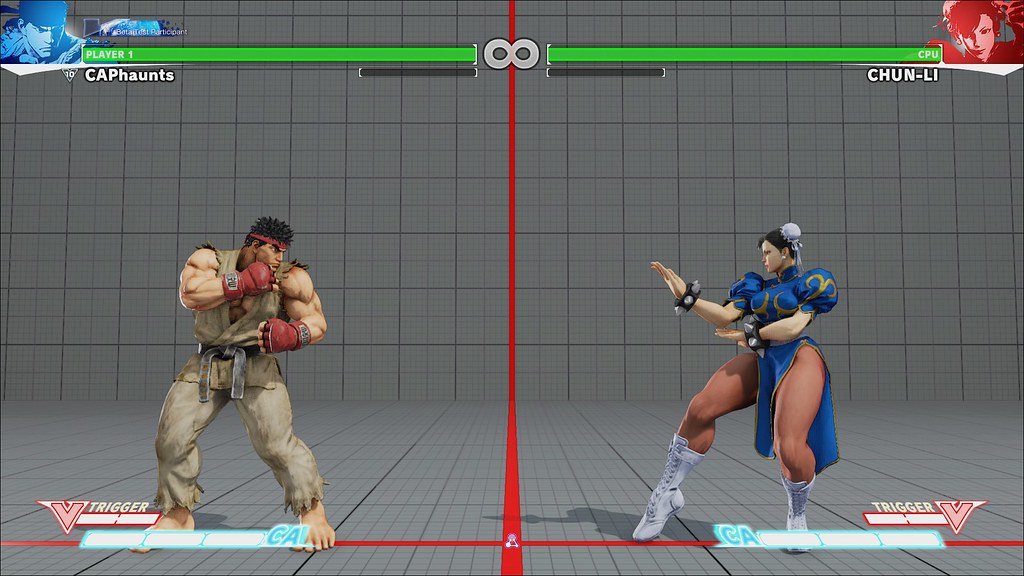
When a character jumps up enough to reach the health bars, they appear in front, as in the image above (see Laura's hand).


Meanwhile, the little special bars stay in the front, covering their feet.

So I can't have the special bars and the health bars in the same layer, as the character models have to be placed between them.

Using layers would be fine except for one thing: limited shadows. Shadows cast on a transparent plane would seamlessly look well on the top of the background layer; however, this limits my choices. What if I want to have a wall in the stage, and want the characters' shadows to be cast onto it? I wouldn't be able to do that using layers, unless I resort to multiple transparent planes, but that's already sounding like a lot of work.

So my ideal approach would be to render a single layer, just one canvas, and place the HUD elements inside, having those elements not moving with the camera and being able to stay in front or behind a certain Z coordinate in the scene. I'm still researching about it while I work in other stuff.

Particles

This will be interesting. I need particles for quite some essential stuff in this game. Namely, hit/block sparks, projectiles, possibly trails, and other effects.

My current plan is to place several emitters along the character's body or a projectile geometry. Then I would turn those emitters on and off during certain animations to get them more visually appealing. As part of the customization process, players would be able to customize those emissions to their liking.

As for trails, there's another option, other than particles. I found this blog post in German a while ago. It creates a plane mesh that follows an emitter. It does sound a bit complex to me still, as I'm not entirely familiar with computer graphics yet. But I think it might play well with what I have in mind.

Implementing a "Pause" mechanic for Tweens

The Tween.js library I'm using relies on a global update() call that allows receiving a parameter with the time. I can implement a "Pause" mechanic by adding to that parameter the amount of time the animation has been paused, and keep that amount in memory until the scene ends. However, I need to be able to keep running certain tweens and pause others for situations where one character executes a special move that freezes the entire screen. That character needs to animate alone (the cinematic effect), so I have to find a way to update tweens independently, or be able to pass different timestamps/deltas onto them. I think I might be able to do it with the current library, but that will require a bit of research into the source code, as it's not mentioned in the documentation.

Build Editors for everything

The Administration interface to create Poses, Animations, Skills, even Geometries. This is going to be a huge amount of work. I'm placing them last in my list though, and will make do with content built manually for now.

Monday, February 1, 2016

Inverse Kinematics, Part 2

Progress report.


I created a new class called Armature(). It contains three bones: the upper bone, the lower bone, and the child bone. Those are represented in the picture above by upper leg, lower leg, and foot.

The new limbs are called LL (Left Leg) and RL (Right Leg), which are Armatures. The yellow planes are helpers just so I know which direction the armature is pointing to. They will be hidden during gameplay, obviously.

They can be rotated as other limbs, but they have an additional dial for "stretch" (see orange circle in the picture). This is a value between 0 and 1, where 0 means "totally bent" and 1 means "totally stretched out". So the leg with the 0.8 value in the picture above is stretched out more than the other leg with the 0.4 value.

Since the upper and lower bones are of the same size (and I'm keeping it that way), calculations of their angles whenever stretching changes became extremely simple:

bone1.rotation.x = (PI/2) * (1.0 - this._stretch) * this.bendModifier;
bone2.rotation.x = PI * (1.0 - this._stretch) * -this.bendModifier;

The above calculations are called every time the "stretch" value is changed.

bendModifier allows me to bend the armatures forward or backward. For knees, that modifier is 1 (forward). For elbows, it would be -1 (backward).

I also decided, for now, to make the child bone (foot) a child of the lower bone (lower leg). Despite being part of the Armature constructor, the foot will be able to be rotated independently of the armature. In my previous post, it was not a child of the lower bone, but I realized it would be extra work to not make it so. In this implementation, I didn't need a "socket" for the foot, for example. Adjusting the height (stretch) of the armature is enough to place the foot at its correct place and there's no risk of disconnection anymore.

This is only the first half of the whole IK thing.
Next up: freezing the child bone. This is gonna be a tough one, so see you in a few weeks. ;-)